
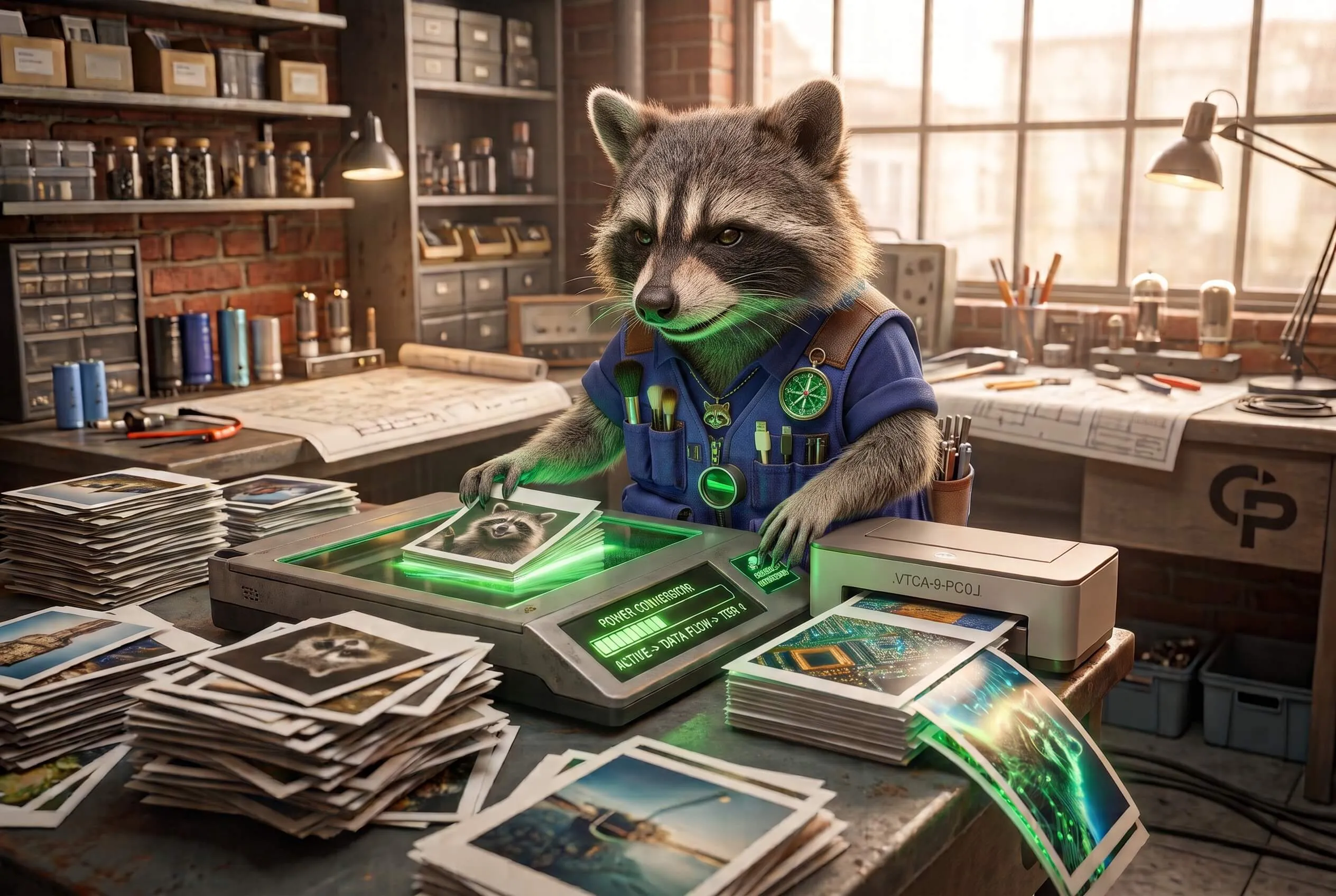
An iPhone still is HEIC unless you switched the camera to Most Compatible. That file is compact and sharp. It is also the file Windows, a lot of email clients, and “JPG only” forms will not open.
The usual fix is a website that says “drop your HEIC.” That site now has the original. iPhone originals often still have GPS.
You do not need a server to change the container.
What conversion actually does
HEIC is pixels in one box. JPEG is the same picture in a box more software already understands.
- The new file is a new object. The HEIC on the phone stays put.
- Pixel count can stay the same. This is not the same job as shrinking.
- JPEG is usually larger than HEIC. HEIC is better at the same look. That is expected.
- A canvas re-encode does not copy EXIF. GPS, camera model, and timestamps do not ride along.
If you also need the file under an email cap, that is compression, not conversion.
Do it in this tab
The HEIC to JPG tool reads the file with the browser File API, decodes the HEIC here, and offers a .jpg download. Drop a whole pile if you want — then a zip. Nothing is sent to TrashPandaKit.
- Get the actual file — Files, AirDrop to yourself, or the photo picker.
- Drop the .heic or .heif.
- Download the JPEG. Close the tab and the working copy is gone.
Live Photo video is not converted. Only the still.
Check the result
Open the download on a computer that hated the HEIC. It should just be a picture.
If you care about location, drop the new JPEG on Photo Location. There should be no pin. The original HEIC may still have one — that is why the convert happens locally.
Want it smaller after? Compress the JPEG. Want the tags gone and the same pixels from a JPEG you already have? Remove Photo Metadata. Need a lossless still? HEIC to PNG. One document from the roll? HEIC to PDF. Other formats: convert images.